
Overview: Texidium Online
This Cheat Sheet is for users of the Texidium’s online eReader. See the bottom of the page for a downloadable reference document of the features of the Texidium Online app.
Organizing Your Library
The following table describes how to sort and filter your eText library from your home page in Texidium Online.
| Action | Icon |
|---|---|
| View as tiles |  |
| View as list |  |
| View book information |  |
| Delete a book | eTexts cannot be deleted through Texidium Online once downloaded. They remain tied to your account and accessible through Texidium Online. Books can only be deleted from Texidium apps. |
| Sort and filter library |  or or  |
Reading a Book
The following table lists basic tasks performed while reading an eText in Texidium Online.
Note: Some features listed in this section are only available when reading eTexts or a certain file type (EPUB or PDF). The applicable format is identified when this is the case. Click the
icon on an eText in your Library to determine its file type.
| Action | Icon / Instructions |
|---|---|
| Turn the page | In scolling view (default): Scroll up/down In side-scrolling view: Forward/back key |
| Go to page (type page # in field) |
 |
| Move forward/back one chapter |  or or |
| View your navigation histroy |  |
| Access the table of contents |  |
| Search book |  |
 Note: There is a limit to how many pages can be printed. This limit varies by eText and is set by the publisher. Some eTexts are not configured to allow printing. |
|
| Copy text |
Note: There is a limit to how many words can be copied from an eText. This limit varies by eText and is set by the publisher. |
| Change navigation/display style (Page-flip / Scroll view) |
 + +  or or  |
| Change text size (EPUB eTexts) |
+  or or |
| Zoom in/out (PDF eTexts) |
 |
| Full screen (PDF eTexts) |
 |
| Fit content to screen width (PDF eTexts) |
 |
| Fit whole page on screen (PDF eTexts) |
 |

Using Notes and Bookmarks
The following table describes how to use notes, bookmarks and highlighting to get the most out of your study sessions with Texidium.
| Action | Icon / Instructions |
|---|---|
| Bookmark the current page |  |
| Browse bookmarks |  |
| Show, hide or filter highlights |  + +  + Toggle category visibility on/off + Toggle category visibility on/off |
| Highlight text / Add note |
|
| Browse notes | |
| Customize highlight categories |
|
| Add a highlight category |
|
| Share a highlight category |
|
| Subscribe to a shared highlight category |
|
 to highlight the text
 to place a note
Managing Your Account
The following table describes tasks in managing your Texidium account and profile settings.
| Action | Instructions |
|---|---|
| View your Profile | 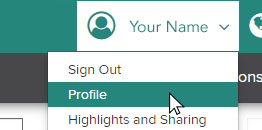 |
| Change your email address | In your Profile:  |
| Change your password | In your Profile:  |
| Remove a synced device | In your Profile: Under “Devices”, click  next to the device you wish to remove. next to the device you wish to remove. |
Getting Texidium Apps
The following table describes how to download Texidium apps.
| Action | Intructions |
|---|---|
| Download Texidium desktop apps (Available for Windows and Mac) |
Go to https://reader.texidium.com/dist/#/apps, and click the Download button next to the app you wish to download. |
| Download Texidium mobile apps (Available for iOS and Android) |
For iOS: Search for “Texidium” on the App Store. For Android: Search for “Texidium” on Google Play. |
Download Overview